
To view this page on your computer, simply enter in your browser: moonvrplayer.com/moonlinkforavp
Step 1
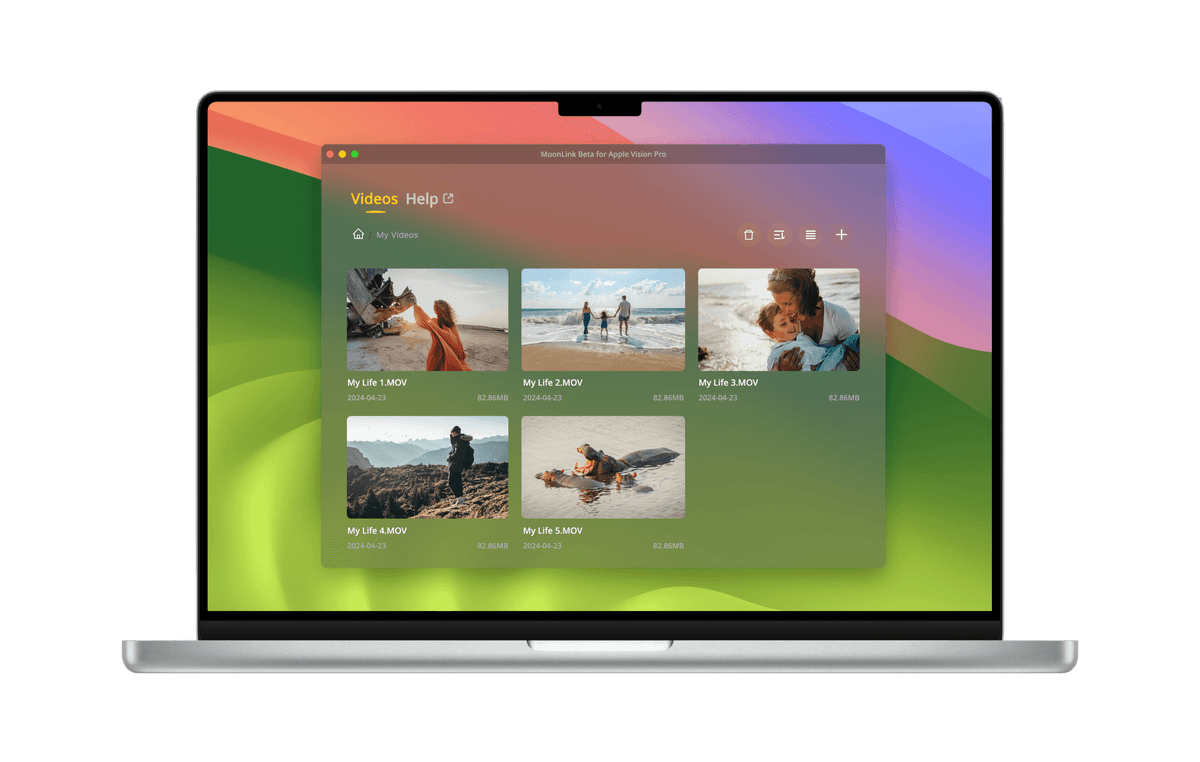
Download and install the Moon Link app on your Mac/PC, then add your favorite videos.
Download Now (moonvrplayer.com)
Step 2
Find Moon Link in Moon Player and enjoy your videos! (As long as your devices are on the same network, Moon Link will automatically appear in the list—no manual input needed.)

That’s it!
Having Issues?
Can’t see the Moon Link device on Apple Vision Pro?
There can be several reasons why Moon Link isn’t showing up. Please go through the following checklist:
-
Make sure you’ve enabled Moon Player’s permission to access the local network in system settings.

-
Force quit other players or simply restart your Apple Vision Pro.
Some other media players or even unrelated apps on Apple Vision Pro might interfere with Moon Player’s ability to discover local devices. This can happen even if the app doesn’t appear to be open. Try force quitting them, or the quicker solution—restart your Apple Vision Pro. -
VPNs, virtual DNS tools, third-party security software, firewall apps, antivirus apps, parental control software, or content blockers can all interfere with Moon Link. Consider temporarily disabling them for troubleshooting.
-
Check if your device has any of the following types of apps. These may come from different vendors but often include keywords like: “Anti”, “Alarm”, “Firewall”, “Mechanic”, “Malware”, “Protection”, “Security”, “Shield”, “Spy”, “Trust”, “Virus”, or “VPN”.
-
Make sure Moon Link is on your computer’s firewall allowlist.
How to allow MoonLink through Windows Firewall -
Ensure both your Apple Vision Pro and computer are connected to the same Wi-Fi network.
-
Make sure your computer is not in sleep mode.
-
Make sure AP Isolation is turned off in your router settings.
Also ensure that your computer and headset are on the same subnet, or that communication is allowed between subnets. -
If you’re using a Windows PC, make sure the SSDP Discovery service is running.
-
Some software or services on your Mac or PC may interfere with Moon Link’s data transmission.
In some cases, these programs may permanently change network settings even after being uninstalled. Common culprits include VPNs, enterprise monitoring software, or network drivers. If you suspect this is the issue, try forgetting and reconnecting to your Wi-Fi network, or resetting your computer.
Note: Many factors can affect local network discovery. The list above is not exhaustive. You may need to troubleshoot other potential issues.
Dragged in a folder but no videos appear?
This issue commonly occurs on Windows computers and is usually caused by Moon Link not having the proper permissions. Try the following steps:
- Run Moon Link as an administrator.
- Go to System Settings > Privacy & Security and grant the appropriate permissions (this may vary depending on your version of Windows).
- Move your video folder to a different location, such as from the C: drive to the D: drive.
- Instead of dragging the folder, use the plus (+) button to add a new folder.
When selecting a folder, double-click to enter the folder, then click “Select Folder”.
If you’re using a Mac, technically this issue should not occur. But if you do encounter it on a Mac, please contact us.