For many new Quest users, the first question is not “What game should I play?” but something much simpler: “What can I do right now that immediately feels like VR?”
A good VR video player is often one of the easiest answers. It lets you sit down, open a screen, enter a virtual room, and instantly understand why watching media in VR feels different from watching on a phone, monitor, or TV. Moon VR Player is one of those apps. On the Meta Quest Store, it is listed as Moon VR Video Player, with a 4.5 rating from about 1.7K reviews at the time of checking.
Q: What is Moon VR Player?
A: Moon VR Player is a VR video player designed for Meta Quest. Its main purpose is simple: help you watch videos in VR in a way that feels natural, immersive, and easy to control.
Instead of making you deal with complicated settings right away, Moon VR Player focuses on the basic experience first: open a video, choose a viewing environment, adjust the screen, and start watching. That makes it especially friendly for people who are new to Quest and want a direct way to experience VR.
Q: Why is it a good first app for Quest beginners?
A: Because video is one of the most immediate ways to understand VR.
You do not need to learn game controls. You do not need to move around a large virtual world. You simply put on the headset and watch content on a big virtual screen. For new Quest users, this can be a very comfortable first step.
Moon VR Player works well as an entry point because it turns the Quest into something familiar: a personal theater, a floating screen, or a mixed reality viewing space. You can start with regular videos, then gradually explore VR videos, immersive scenes, Passthrough mode, and more advanced features.
Q: What makes the viewing experience feel immersive?
A: One of Moon VR Player’s most impressive details is its realistic virtual environments.
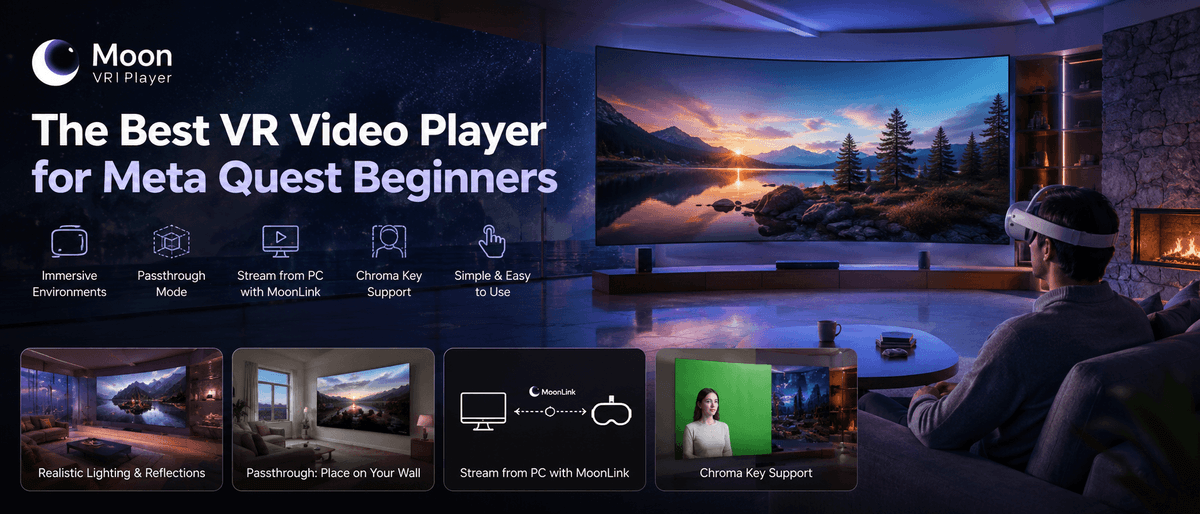
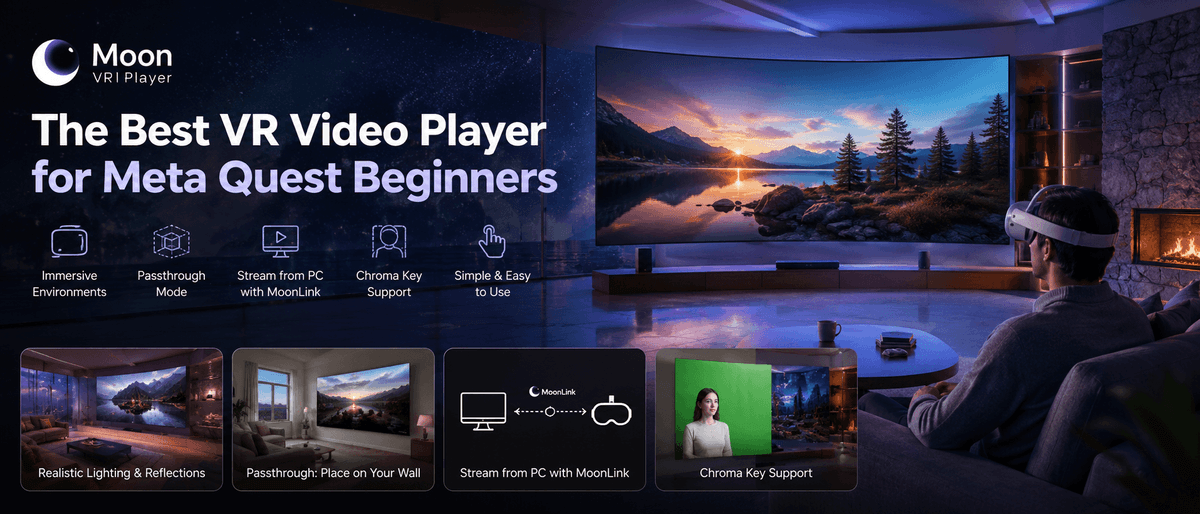
The scenes are not just flat backgrounds. They are designed to feel like real spaces around you. In some environments, even the walls can reflect light from the video in real time, making the room feel connected to what you are watching.
That small detail changes the feeling a lot. A bright scene can gently light up the virtual room. A darker film can make the space feel more cinematic. It gives the impression that the screen is really inside the environment, not just pasted in front of you.
Q: Does Moon VR Player support mixed reality viewing?
A: Yes. Moon VR Player supports Passthrough mode, which lets you bring the video screen into your real room.
After scanning your room, you can place a virtual screen onto a real wall. This is especially useful if you do not always want to watch inside a fully virtual space. Instead, your own room becomes the theater, and the screen feels like it belongs there.
For many Quest users, this is a great “wow” moment. It is simple, practical, and easy to understand: your wall becomes a screen, but the screen is virtual.
Q: What is chroma keying, and why does it matter?
A: Chroma keying is a feature that removes a specific background color, often green or blue, from a video.
Moon VR Player supports chroma keying, which opens up more creative viewing possibilities. For example, if a video was shot with a green screen background, Moon VR Player can help separate the subject from that background. This can make certain types of videos feel more spatial and more integrated into the VR environment.
It is not a feature every beginner will use on day one, but it adds depth for users who want to experiment with more creative or immersive video content.
Q: Can I watch videos from my computer?
A: Yes. With MoonLink, you can stream videos from your computer to your Quest more smoothly.
This is one of the most practical parts of the Moon VR Player experience. Many people keep their video library on a PC or Mac, and transferring files into a headset can feel annoying. MoonLink helps reduce that friction by letting you stream computer videos directly to Quest.
For everyday use, this makes Moon VR Player feel much easier. You can keep your files where they already are and watch them in the headset without constantly moving videos back and forth.
Q: Is it only for advanced VR users?
A: No. In fact, Moon VR Player may be most useful for people who are just getting started with Quest.
Advanced users can explore features like Passthrough placement, chroma keying, immersive environments, and PC streaming. But beginners can simply open the app and watch a video on a big virtual screen.
That balance is important. A good entry level VR app should not feel limited, but it also should not feel overwhelming. Moon VR Player keeps the first experience simple while still offering features you can grow into.
Q: What kind of person is Moon VR Player best for?
A: Moon VR Player is a strong fit for:
-
People who just bought a Quest and want an easy first VR experience.
-
People who want a private cinema like screen without setting up a real projector or TV.
-
People who want to watch videos from a computer on Quest with less hassle.
-
People curious about mixed reality viewing, especially placing a screen on a real wall.
-
People interested in more immersive video features such as realistic lighting and chroma keying.
Q: What is the main reason to try it?
A: Moon VR Player is one of the simplest ways to understand what makes Quest different.
It does not ask you to master VR first. It gives you a familiar activity, watching videos, and makes it feel bigger, more flexible, and more immersive. The realistic environments, Passthrough wall placement, chroma key support, and MoonLink streaming all build around one clear idea: watching video in VR should feel easy, natural, and enjoyable.
For Quest beginners, that makes Moon VR Player a very accessible starting point. It is not trying too hard to impress you with complexity. It simply gives you a direct path into VR, one video at a time.